When your business suddenly disappears from Google Maps, it’s a gut-punch. That digital front door feels like it's been slammed shut. The phone stops ringing, foot traffic dries up, and the panic is very, very real.
But before you scramble, take a breath. The fix is usually buried in a simple, methodical diagnosis, not a frantic, all-hands-on-deck emergency. More often than not, the problem is a simple setting or a missing piece of information that’s holding your listing back.
Your Quick Google Maps Visibility Diagnosis
So, where do you start? The first step is to figure out the most likely reason your business has gone dark. Are we dealing with a foundational issue, like a profile that Google doesn't fully trust yet? Or is it a more subtle ranking problem where competitors are simply boxing you out?
Common Visibility Blockers
Let's cut straight to the most frequent culprits. An unverified or half-finished profile is a massive one. In a study by SearchLab Digital, a staggering 11.1% of over 1,600 Google Business Profiles were completely unclaimed. That means roughly one in every nine businesses hadn't even taken the first essential step to get on the board. You can read more about their findings on the impact this has.
Here are the first places you should be looking:
- Profile Status: Is your GBP actually verified? Or is it suspended or flagged as a duplicate?
- Business Information: Are your Name, Address, and Phone number (your NAP) perfectly consistent across the web? Any mismatch can confuse Google.
- Location Settings: Did you set yourself up as a storefront when you're really a service-area business? A wrong move here can make your map pin vanish.
- Ranking Factors: Are you a ghost town? A lack of recent reviews, photos, or customer engagement tells Google's algorithm you're not relevant.
This decision tree gives you a quick visual guide for those initial diagnostic questions.
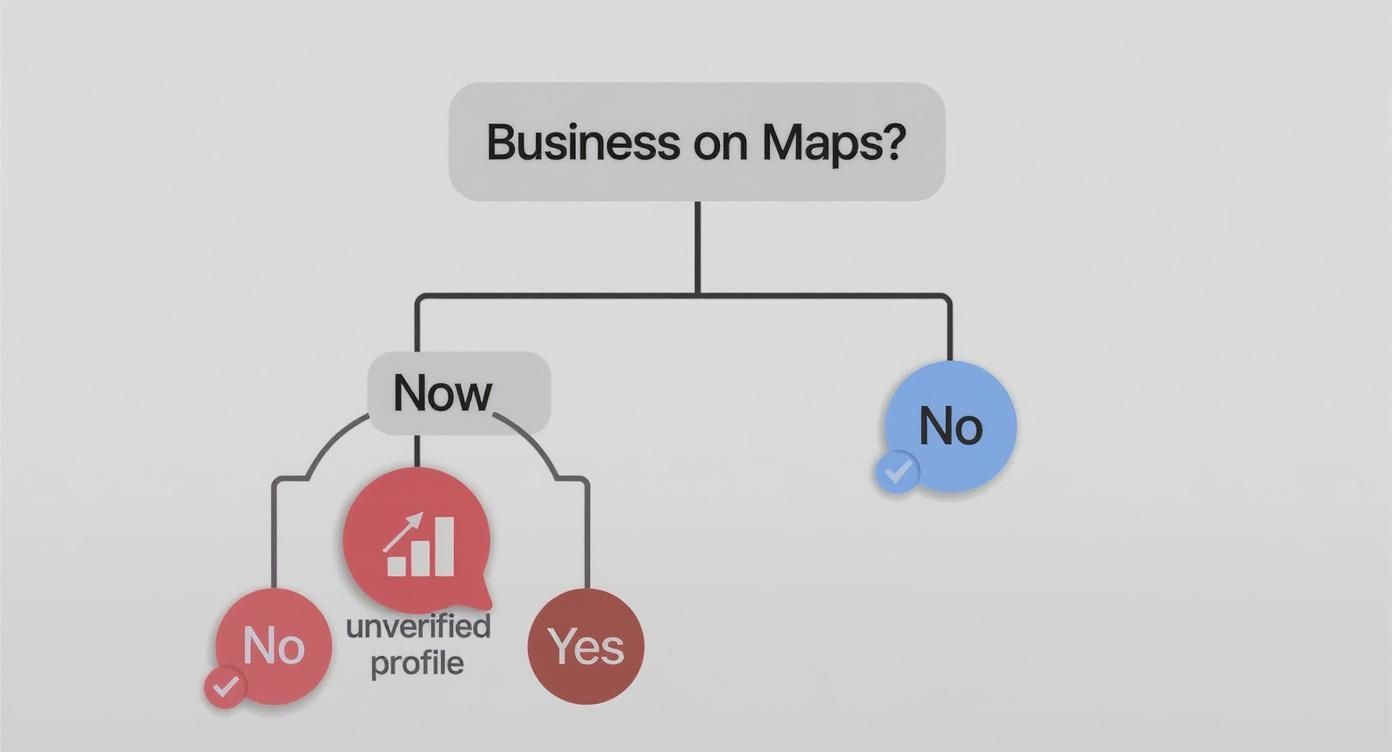
As the flowchart shows, the problem boils down to two main paths: either your business isn't set up correctly on Maps in the first place, or it is there, but it just isn't ranking well enough to show up when people search.
To make this even simpler, here’s a quick-glance table to help you match what you're seeing with a probable cause.
Google Maps Visibility Troubleshooting Guide
Quickly diagnose why your business isn't showing up on Google Maps by matching your issue with its common cause and initial fix.
| Symptom | Common Cause | First Step to Fix |
|---|---|---|
| Can't find business by name, even when zoomed in. | Profile is unverified, suspended, or new and not indexed yet. | Check your GBP dashboard for status alerts and complete the verification process. |
| Business only shows up when I type the exact name. | Poor local SEO ranking or niche business categories. | Add more relevant categories, get more high-quality reviews, and build local citations. |
| My map pin is gone, but the listing is still active. | Set up as a Service Area Business (SAB) without a physical address. | Review your GBP address settings to ensure they match your business type. |
| My listing disappeared after I made edits. | The change triggered a quality review or temporary suspension. | Wait 24-48 hours. If it doesn't return, check for a suspension notice. |
| I see two listings for my business. | A duplicate profile was created automatically or by mistake. | Identify the duplicate and use Google's process to merge or remove it. |
This table should help you narrow things down fast so you can get to work on the right solution.
Key Takeaway: Your first job is to figure out if you're facing a technical barrier (like a verification issue) or a competitive one (like poor local SEO). The first is a switch that needs to be flipped; the second is a hill that needs to be climbed.
Get Your Google Business Profile in Order

Think of your Google Business Profile (GBP) as the digital deed to your physical location. If it’s got cracks—it’s unverified, incomplete, or worse, suspended—your entire visibility on Google Maps can disappear overnight.
This profile is almost always the first place I look when a client asks, "why is my business not showing on Google Maps?"
An unverified profile is a massive red flag. Verification is how you prove to Google that your business is real and that you’re the one who should be managing it. Until you complete this step, Google simply won’t trust your listing enough to show it to the public.
The Verification Gauntlet: What to Expect
Google’s verification process isn’t one-size-fits-all; the methods change depending on your business type and history. Knowing the possibilities ahead of time can make this go much faster.
The old-school postcard by mail is still the most common method. Google sends a physical card with a unique code to your business address. It feels a bit dated, but it's their most reliable way of confirming you actually exist at that spot.
You might also see other options:
- Phone Call or Text: Google will call or text your listed business number with an automated code. This is usually reserved for established businesses Google already has some trust in.
- Email: A verification code gets sent to your business email, like
you@yourdomain.com. - Live Video Call: You’ll have to hop on a video call with a Google rep and give them a virtual tour, showing things like your storefront signage, business license, or a company vehicle.
- Video Recording: This one requires you to record a short video of your location, equipment, and proof of management, then upload it for review.
Expert Tip: If you've recently made a major change to your profile, like updating the address or business name, Google might ask you to re-verify. Don't panic. This is a standard security check to prevent hijacking and fraud.
Fill in the Blanks for Maximum Visibility
Getting verified is just the first step. A sparse, half-empty profile is almost as invisible as an unverified one. Every blank field is a missed opportunity to feed Google’s algorithm the signals it needs to rank you. For a complete checklist, our guide on how to optimize Google Business Profile covers every detail.
Start with the absolute basics: your Name, Address, and Phone number (NAP). This information has to be perfectly consistent with your website and other major online directories. Even tiny differences—"St." vs. "Street" or "(555)" vs. "555-"—can confuse Google and damage its trust in your data.
Next, nail down your business categories. Your primary category is the single most important choice you'll make here; it tells Google what you are. Be specific. Choose "Pizza Restaurant" instead of the generic "Restaurant." Then, add secondary categories for other important services, like "Pizza Delivery" or "Catering."
This is about aligning with what people are actually searching for.
Dealing with the Dreaded Profile Suspension
A profile suspension is the nuclear option. It means Google has flagged your profile for a guideline violation, and it’s been completely pulled from public view until you fix it. This is one of the most stressful things a business owner can face.
Suspensions typically come in two flavors:
- Soft Suspension: Your listing is technically still active, but it’s marked as "unverified," and you’ve lost the ability to make edits. This often happens after an ownership or address change.
- Hard Suspension: Your listing has been completely removed from Google Search and Maps. This is for more serious stuff like keyword stuffing your business name, using a P.O. Box for an address, or creating duplicate listings.
If you get suspended, the first move is to calmly review Google's guidelines and figure out what you did wrong. Did you add "Best Plumber NYC" to your business name? Is your address a virtual office? Once you've found and fixed the problem, you have to submit a reinstatement request.
Your appeal needs to be precise and professional. Vague excuses get rejected instantly.
Here's a simple template that works:
Business Name: [Your Official Business Name]
Google Business Profile ID: [Find this in your GBP settings]
Public Maps URL: [Link to your listing if you have it]
To the Google Business Profile Support Team,
I am writing to request the reinstatement of our business profile, which was recently suspended.
After reviewing the GBP guidelines, I believe the suspension may have been triggered by [State the specific issue you corrected, e.g., "an accidental inclusion of a keyword in our business name"].
I have since corrected this issue by [Explain the exact fix, e.g., "reverting our business name to its official, registered name, 'Your Company LLC'"]. I have also attached our business license and a utility bill to confirm our name and address.
We are committed to complying with all guidelines and would appreciate it if you would review our profile for reinstatement.
Thank you for your time and consideration.
Sincerely,
[Your Name]
[Your Title]
Now, be patient. The review is handled by real people and can take days, sometimes weeks. Sending multiple appeals will only push you to the back of the line. Master your profile—from verification to optimization and even suspension recovery—and you’ll build the strong foundation needed to stay visible on Google Maps.
Fixing Common Address and Service Area Mistakes
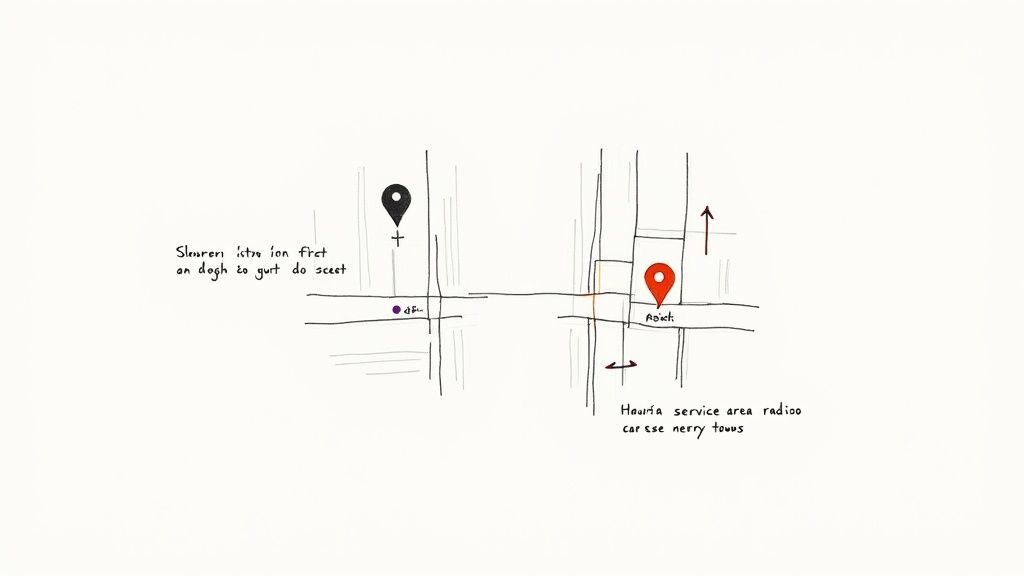
Your address settings are the bedrock of your visibility on Google Maps. Get this wrong, and you might as well be invisible. It’s a tiny detail with massive consequences.
Two of the most common—and damaging—mistakes I see are mishandling the business address and letting duplicate listings run wild. The core of the problem usually comes down to a simple misunderstanding: are you a storefront or a Service Area Business (SAB)? Getting this distinction wrong is a primary reason businesses completely disappear from the map.
Storefront vs. Service Area Business
A storefront is exactly what it sounds like: a physical shop where customers walk in. Think coffee shops, retail stores, or dental clinics. For these businesses, showing your address isn't just important—it's everything. If you have a storefront but accidentally hide your address in your Google Business Profile, your map pin vanishes. Instantly.
A Service Area Business (SAB), on the other hand, travels to its customers. Plumbers, mobile dog groomers, and landscapers are classic examples. These businesses often work from a home address they don't want to make public.
The critical error happens when a service business fails to set up its profile correctly as an SAB, or when a storefront mistakenly adds a service area, which just confuses Google.
Key Insight: Hiding your address doesn't just remove your street number; it removes your map pin entirely. If customers are meant to visit you, your address must be visible. For service-based operations without a storefront, defining a service area is the correct path to visibility.
Let's say you're a home-based marketing consultant who serves clients in three specific counties. You absolutely should not list your home address. Instead, you need to:
- Clear the physical address field in your Google Business Profile dashboard.
- Define your service area by listing the specific counties, cities, or ZIP codes you cover.
This tells Google, "Show my business to people searching for my services within this geographic zone," even without a public-facing pin. For a deeper dive, our guide to managing a service area business on Google provides a complete walkthrough.
The Problem with Duplicate Listings
Duplicate listings are the silent killer of Google Maps visibility. They pop up when more than one profile exists for the same business at the same location, which splits your authority and confuses Google's algorithm. It simply doesn't know which profile to trust or rank.
Duplicates can be created by accident—by well-meaning employees, automated data aggregators, or even by Google itself when it finds conflicting info online. The result? Your hard-earned reviews, photos, and ranking signals get diluted across multiple listings, weakening all of them.
To hunt them down, search your business name on Google Maps and look for multiple pins near your location. Don't forget to search for slight variations of your name or old addresses, too.
Once you find a duplicate, it's time to act.
How to Merge Duplicate Google Business Profiles
- Identify the authoritative profile. This is the one you control—the verified listing with the most accurate info and reviews.
- Report the duplicate. Go to the duplicate listing on Google Maps and click "Suggest an edit." From there, choose "Close or remove" and select "Duplicate of another place" as the reason.
- Point to the correct location. Google will ask you to show it the correct listing on the map. Make sure you pinpoint your authoritative profile.
This sends a request to Google's support team to review and merge the listings. It can take a little time, but consolidating your presence into a single, powerful profile is absolutely essential for consistent visibility on Google Maps.
How to Become a Local Authority on Google Maps
Having a technically correct and verified Google Business Profile is just the entry fee. It’s not the grand prize. If you’ve fixed all the foundational issues but are still wondering, “Why isn’t my business showing up on Google Maps?” the answer is almost always authority. You haven’t proven you’re a major player.
Google's local algorithm is really built on three core pillars: proximity, relevance, and prominence. You can't move your store closer to a searcher, but you have immense control over the other two.
Mastering relevance and prominence is how you stop being just another pin on the map and become the go-to result.
Nailing Your Relevance Signals
Relevance is all about matching what a user is actually searching for. You need to speak Google’s language so the algorithm has zero doubt about what you do, and that conversation starts with your business categories.
Your primary category is the single most important ranking factor you can directly control. Be ruthlessly specific. If you're a steakhouse, don't just pick "Restaurant"—choose "Steak House."
Then, you can layer in secondary categories to capture all your other important services. For that same steakhouse, you might add "Fine Dining Restaurant," "Bar & Grill," and "Private Dining Room." These tell Google the full story, making you eligible for a much wider range of searches.
Think like your customer. What words would they use? And whatever you do, don't add irrelevant categories just to cast a wider net. Google will penalize you for it. For example, if you're a "Pizza Restaurant" that doesn't offer delivery, adding "Pizza Delivery" is a direct violation that will absolutely hurt your visibility.
Pro Tip: Specificity is your greatest asset. The more precisely you define your business through categories and services, the easier it is for Google to connect you with high-intent customers ready to buy.
Building Prominence Through Citations and Reviews
Prominence is Google’s way of measuring how well-known and respected your business is in the real world, and it does this by tracking online signals. This is where you build trust and authority, mostly through two channels: local citations and customer reviews.
Local citations are just mentions of your business's Name, Address, and Phone number (NAP) on other websites. Think major directories like Yelp and Bing, industry-specific sites like TripAdvisor or Zocdoc, or even local blogs. When your NAP is consistent across these high-quality sites, it acts as a powerful vote of confidence, telling Google your business is legitimate and established.
But consistency is everything. Even tiny variations can dilute your authority. You need to make sure your NAP is identical everywhere, right down to the "St." vs. "Street" details.
The Undeniable Power of Customer Engagement
Another critical reason your business might not appear on Google Maps is a simple lack of reviews and engagement. These have become some of the strongest local ranking factors today. Google’s algorithm treats reviews as a direct signal of trust.
According to Birdeye’s State of Google Business Profiles report, fully populated and verified profiles generate 4× more website visits, 12% more calls, and 10% more direction requests than incomplete listings. The message is clear: active, well-maintained profiles are rewarded with much higher visibility. You can discover more insights about Google Business Profile performance and its impact on your rankings.
Reviews are so much more than social proof. They are a live, ongoing conversation that shows your business is active and valued. A steady stream of new, positive reviews tells Google you’re not just open—you’re thriving.
To build this kind of momentum, you just need a simple, repeatable process for encouraging feedback:
- Ask at the Right Time. The best moment to ask is right after a positive experience—a successful service call, a happy customer at checkout.
- Make It Easy. Give them a direct link or a QR code that goes straight to your review page. The fewer clicks, the more reviews you'll get.
- Respond to Every Single Review. This is non-negotiable. Responding to positive reviews shows appreciation, while thoughtfully addressing negative ones demonstrates accountability. Google sees this engagement and rewards it.
By strategically building your relevance with precise categories and boosting your prominence with consistent citations and a vibrant review profile, you send undeniable signals to Google. You're not just a business that exists; you're a local authority that deserves to be seen.
Confirming Your Visibility Like a Pro
So, you’ve double-checked your profile and tackled the usual suspects, but you're still left wondering, "Why isn't my business showing up on Google Maps?" Before you jump to conclusions, you need to be sure what’s really happening. Are you actually invisible, or are you just not seeing the full picture?
Let's get one thing straight: searching for your own business from your office computer is one of the most misleading things you can do.
Google knows your IP address, your search history, and that you manage your business profile. It's programmed to show you what it thinks you want to see—which is almost always your own listing. This creates a dangerous blind spot. You might think you're ranking at the top, while a customer just a few miles away sees you on page three, or not at all.
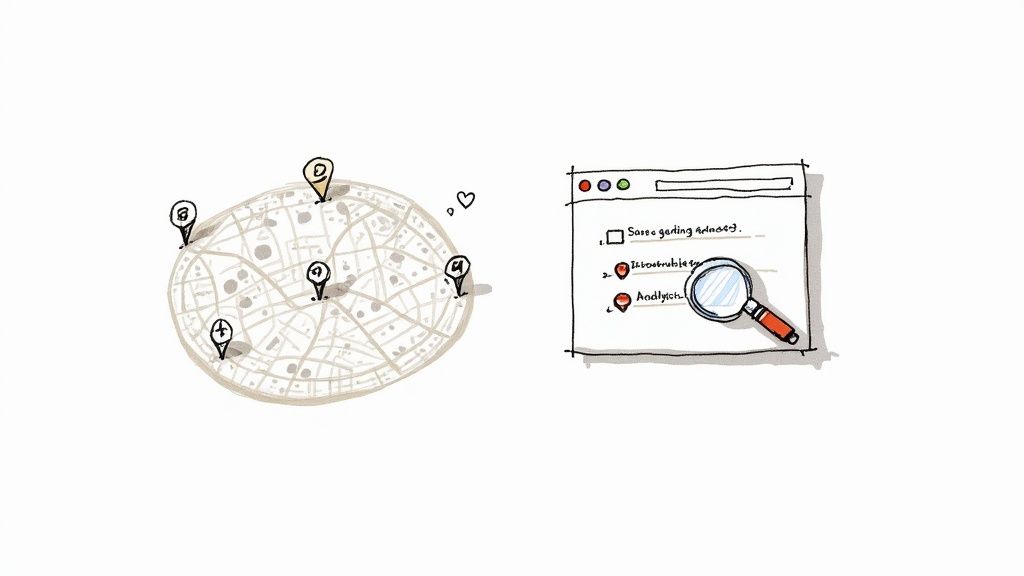
Getting an Unbiased Look at Your Rankings
To see your business through a real customer's eyes, you have to strip away all that personalization. A simple first step is to use your browser’s incognito or private mode. This clears out your search history and cookies, giving you a cleaner, more objective look at the search results.
But even incognito mode has its limits. It still uses your device’s physical location, so it doesn't solve the proximity bias. To truly understand your visibility, you need to simulate searches from different neighborhoods—from where your customers actually are.
This is where specialized local SEO tools become non-negotiable. They let you see your rankings from virtually anywhere.
- Geogrid Tools: These are game-changers. They generate a visual heatmap of your rankings across a specific area, showing you block-by-block where you’re in the top three, where you’re on the first page, and where you're completely off the map.
- Local Search Simulators: Tools like the one from BrightLocal let you plug in a search term and a specific address to see the exact search results a user would get from that location.
For multi-location brands, using a dedicated Google Maps ranking checker is absolutely essential. It’s the only way to effectively monitor performance across all your markets and make smart, data-backed decisions.
Let Your Data Tell the Real Story
Beyond external tools, your Google Business Profile itself holds a goldmine of information in the Performance section (what used to be called Insights). This is where you stop guessing and start knowing.
Instead of obsessing over vanity searches, analyze the user actions that prove you’re actually being found.
Key Takeaway: Stop searching for yourself from your desk. The real proof is in the engagement metrics that show actual customers are finding and interacting with your business on Google Maps.
Dive into these key metrics to get the truth:
- Search Appearances: See how many times you showed up for discovery searches (like "restaurants near me") versus direct searches (your business name). A high number of discovery searches means your local SEO is doing its job.
- Direction Requests: This is a huge buying signal. Someone asking for directions is showing a strong intent to walk through your door.
- Website Clicks and Calls: These are direct conversions. They measure how many people took action right from your Maps listing.
When you combine unbiased search simulations with a deep dive into your profile's performance data, you get a complete and accurate picture of your visibility. This is the only way to truly diagnose where you stand and figure out what to fix next.
Answering Your Top Google Maps Questions
You’ve dotted every ‘i’ and crossed every ‘t’. You verified the profile, cleaned up your categories, and hunted down duplicates, but something is still… off. Frustrating, right?
Let’s dig into some of the most common questions that pop up even after you’ve done everything by the book.
How Long Do GBP Changes Actually Take to Go Live?
This is a big one. It's the source of a lot of anxiety for business owners. You just updated your hours or added a crucial new service—when is Google actually going to show it to the world?
The truth is, it depends. While simple edits like tweaking your business description can appear almost instantly, other changes trigger a review from Google’s team.
- Minor Edits: Things like updating your services list or publishing a new post are usually live within minutes.
- Major Edits: Changing core information like your business name, address, or primary category? That’s going to take longer. Expect a 24-72 hour delay while Google runs a quality check to make sure it's not spam or a malicious edit.
My best advice? Be patient. Refreshing your profile every five minutes won't speed things up. Give it a few days before you start thinking something is broken.
I Am Verified but Still Not Showing Up. What Now?
Seeing that "Verified" checkmark but still feeling invisible on the map is maddening. If you know your profile is technically sound and active, the problem almost always comes down to local ranking factors.
Think of it this way: Verification is just your ticket to the game. It doesn't guarantee you a spot on the field.
At this stage, you need to shift your focus from technical fixes to competitive strategy. Your business exists in Google's eyes, but it doesn't have the authority and relevance to beat out established competitors for the searches that matter.
It's time to double down on the work that actually moves the needle:
- Build Citations: Are you listed consistently across major directories like Yelp, Bing, and industry-specific sites?
- Generate Reviews: A steady stream of recent, positive reviews is one of the most powerful ranking signals you have.
- Sharpen Your On-Page Local SEO: Does your website have dedicated pages for each location, filled with relevant local content?
The Big Takeaway: Being verified means your profile works. Not showing up means it isn't competitive. The problem has officially shifted from a technical glitch to an SEO challenge. Your job now is to prove to Google that you’re a prominent and relevant choice for local customers.
Can a Competitor's Actions Hurt My Listing?
Unfortunately, yes. Google’s algorithm is smart, but it’s not perfect. Shady competitors can sometimes mess with your listing, both intentionally and unintentionally.
A common dirty trick is suggesting malicious edits, like marking your business as "permanently closed" or changing your phone number. Another is creating spammy, keyword-stuffed business listings that can temporarily push legitimate businesses like yours down the ranks.
Get in the habit of checking your own listing regularly for any changes you didn't make. If you see a competitor using spam tactics—like stuffing keywords into their business name ("Joe's Plumbing – Best Plumber NYC")—you can and should report it. Just find their profile on Maps, click "Suggest an edit," and then "Close or remove" to report it for spam.
Keeping the playing field fair is part of defending your own visibility.
Ready to stop guessing and start ranking? Nearfront gives you the tools to see exactly where you stand on Google Maps, track your visibility across every neighborhood, and identify the actions that will drive real customer traffic. Get your personalized local SEO plan today.